PlowR Help

Tips and how-tos for running your routes, clients and day.

Getting started

PlowR has five tabs: Home, Clients, Routes, Documents and Schedule. Settings is the gear at the top of Home.

Set up your business
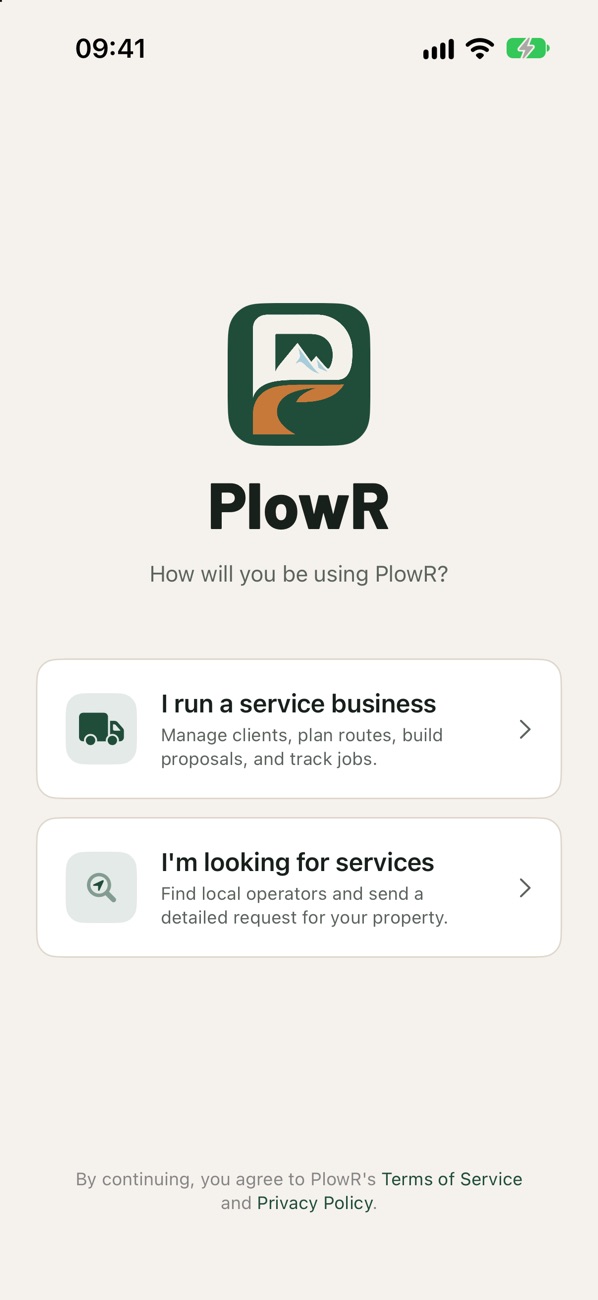
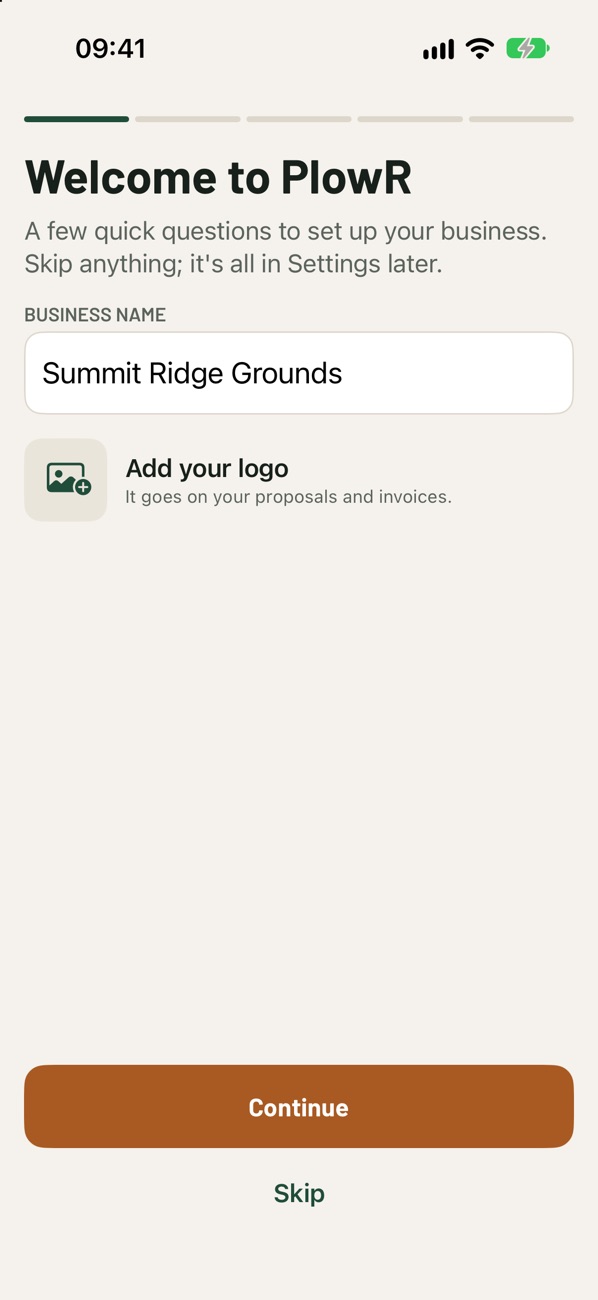
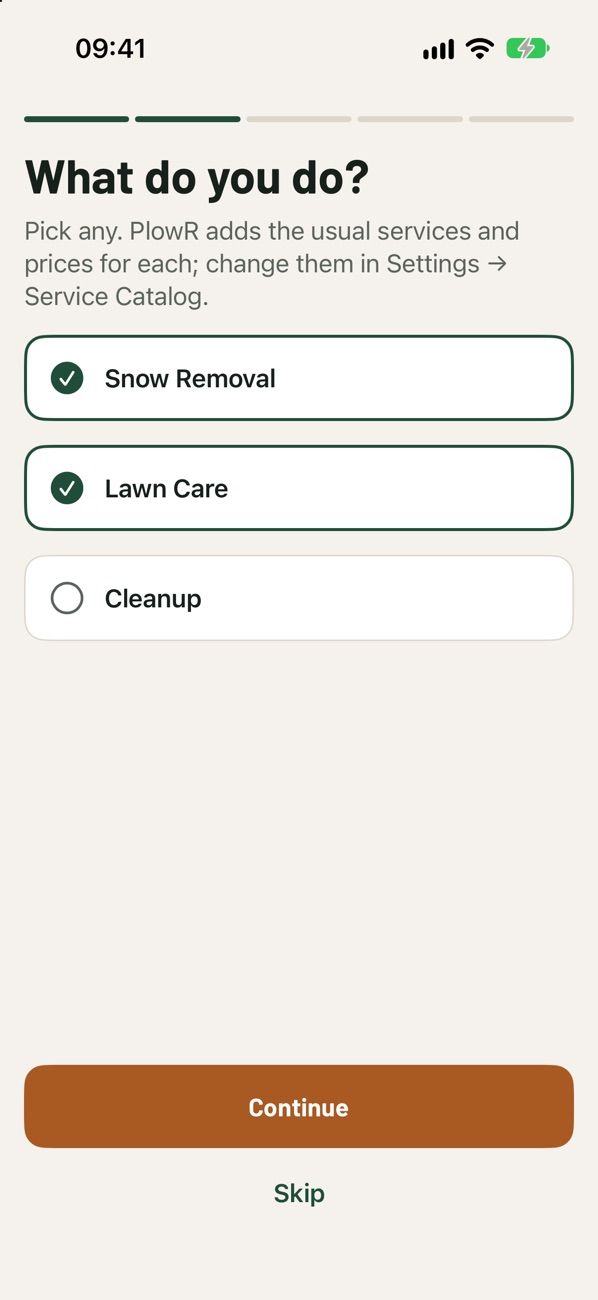
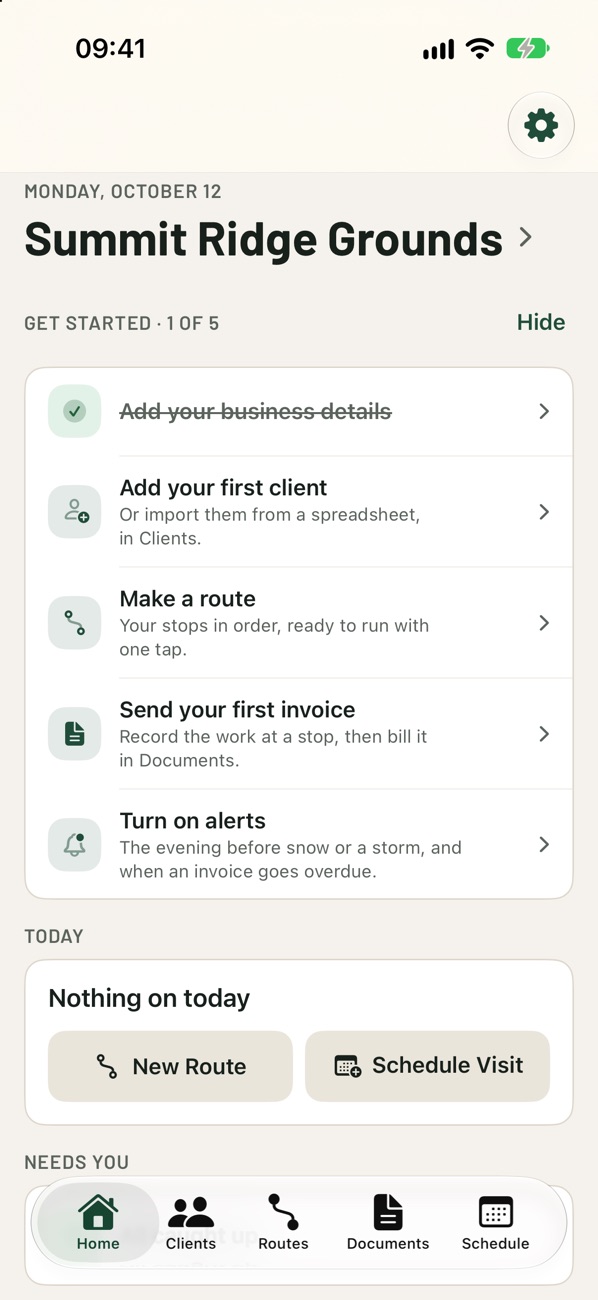
How will you be using PlowR? Welcome to PlowR setup What do you do? Home, Get Started card
  1. Choose I run a service business, then sign in with Apple.
  2. Enter your Business name and add your logo. It goes on your proposals and invoices.
  3. Under What do you do?, pick Snow Removal, Lawn Care, Cleanup, or any mix. PlowR adds the usual services and prices, which you can change later.
  4. Enter your Default tax rate (%).
  5. Turn on Alerts and Your location if you'd like them. Every step has Skip.
  6. On Home, the Get Started card walks you through your first client, route and invoice.
PlowR is free for up to 10 active clients and one route, for as long as you like. PlowR Pro adds unlimited clients and routes, Service Reports, storm tools, client import and a Request Link. Items marked PRO below need it.
Adding clients

Add clients one at a time, bring in a whole list, or let new customers come to you.

Add a client

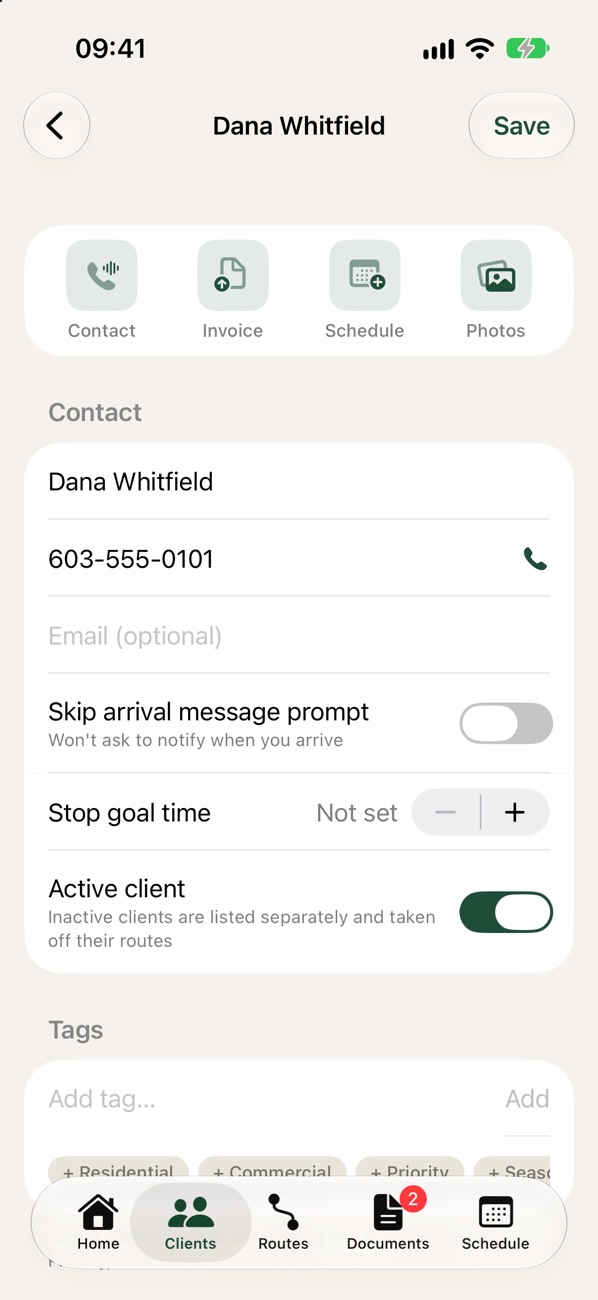
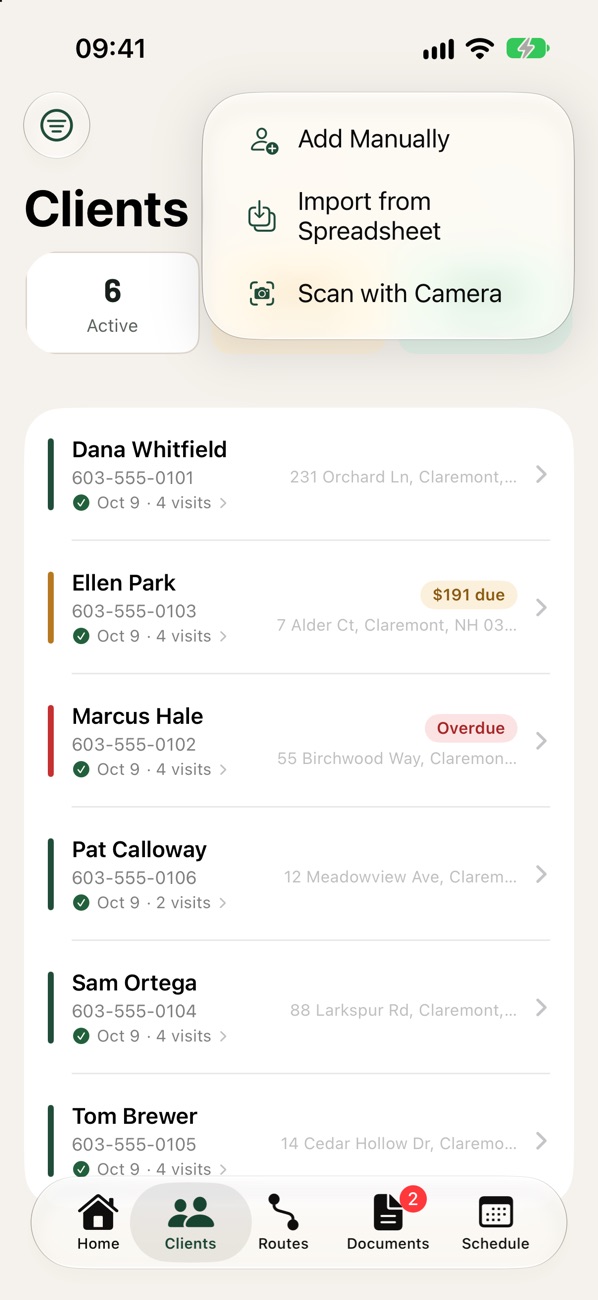
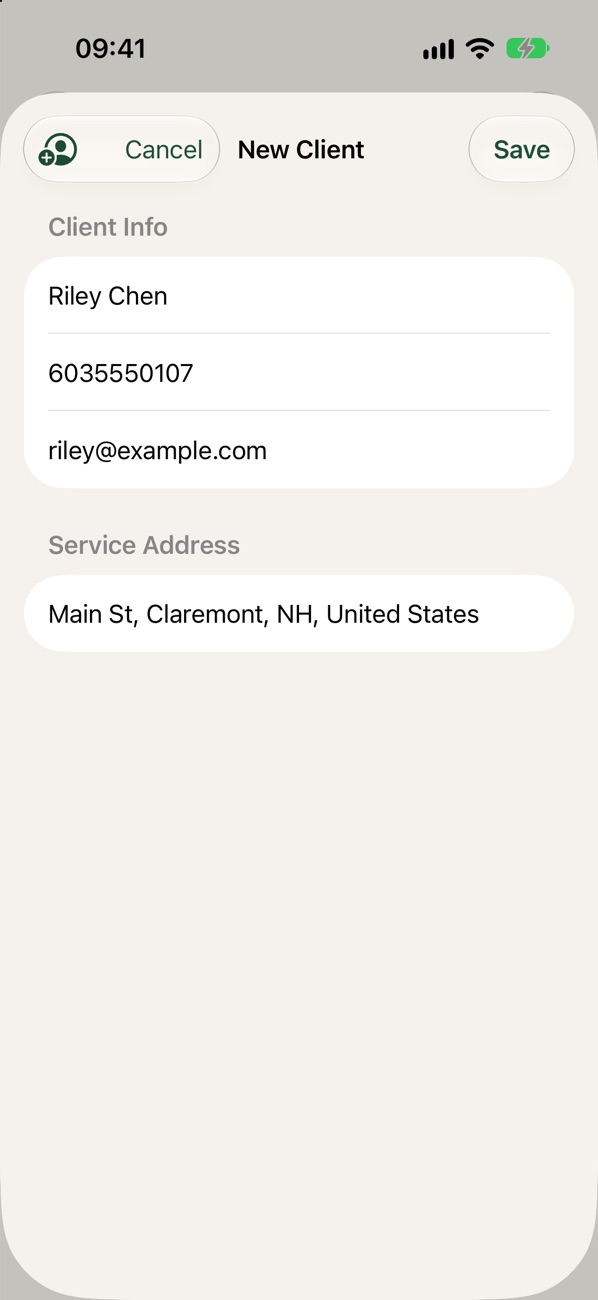
Clients tab, + menu New Client form client page
  1. Open the Clients tab, tap +, and choose Add Manually.
  2. Enter their Full Name and Phone Number, and an email if you have one. Or tap Import Contact to fill it in from your Contacts.
  3. Type the Street Address and pick the match. PlowR pins it on the map.
  4. Tap Save.
  5. On the client's page, add the rest: tags, notes, Expected Services, billing preferences, Tax Exempt, route notes, and other properties.
Tip: set a client's Expected Services once and every route they're on starts with them.

Bring in your whole list PRO

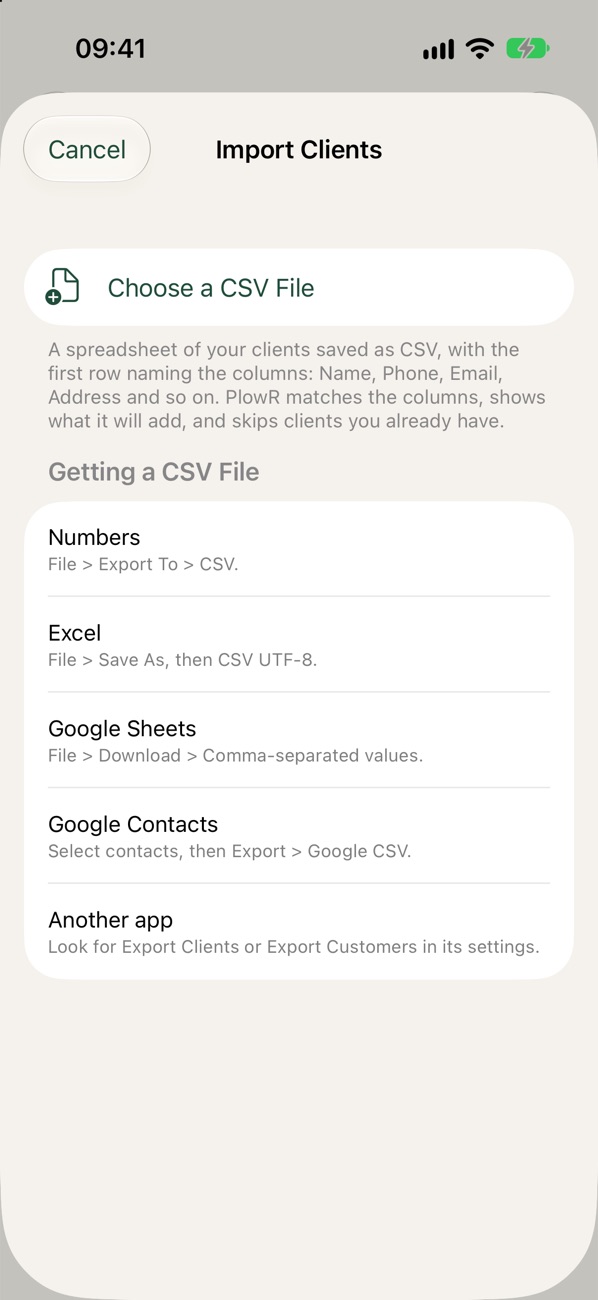
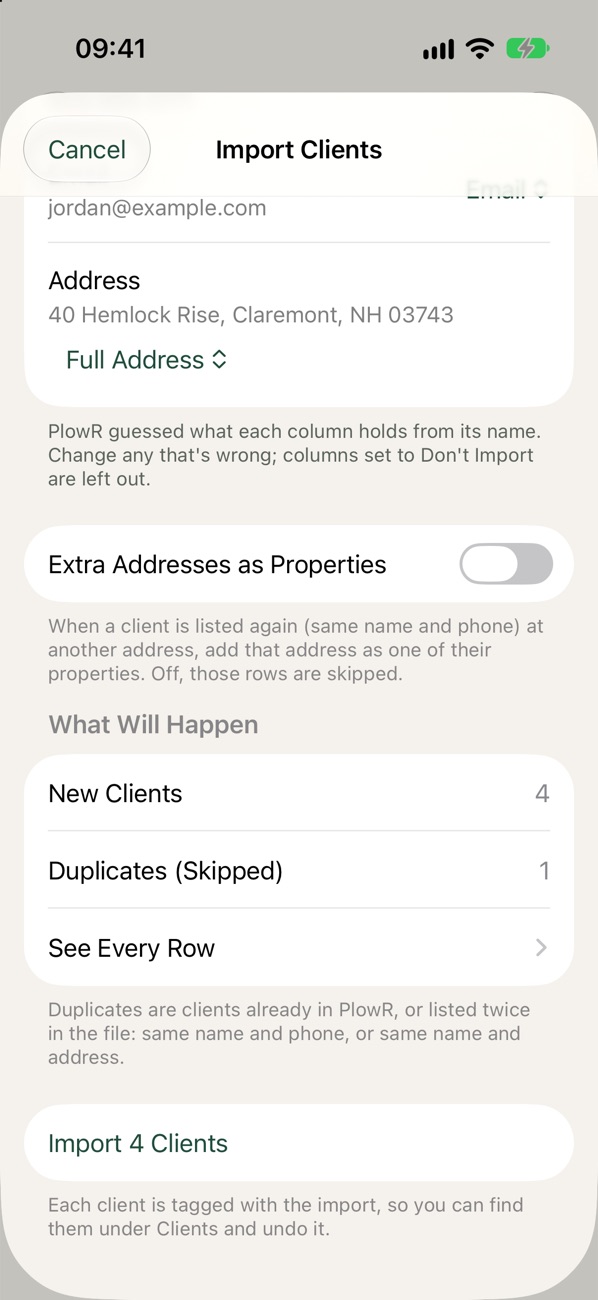
Import from Spreadsheet import preview
  1. Save your list as a CSV file. Numbers, Excel and Google Sheets can all do this.
  2. In Clients, tap + → Import from Spreadsheet, then Choose a CSV File.
  3. Check what PlowR will add, then save. An import can be undone.
On a device with a camera you can also use Scan with Camera.

Let new customers find you PRO

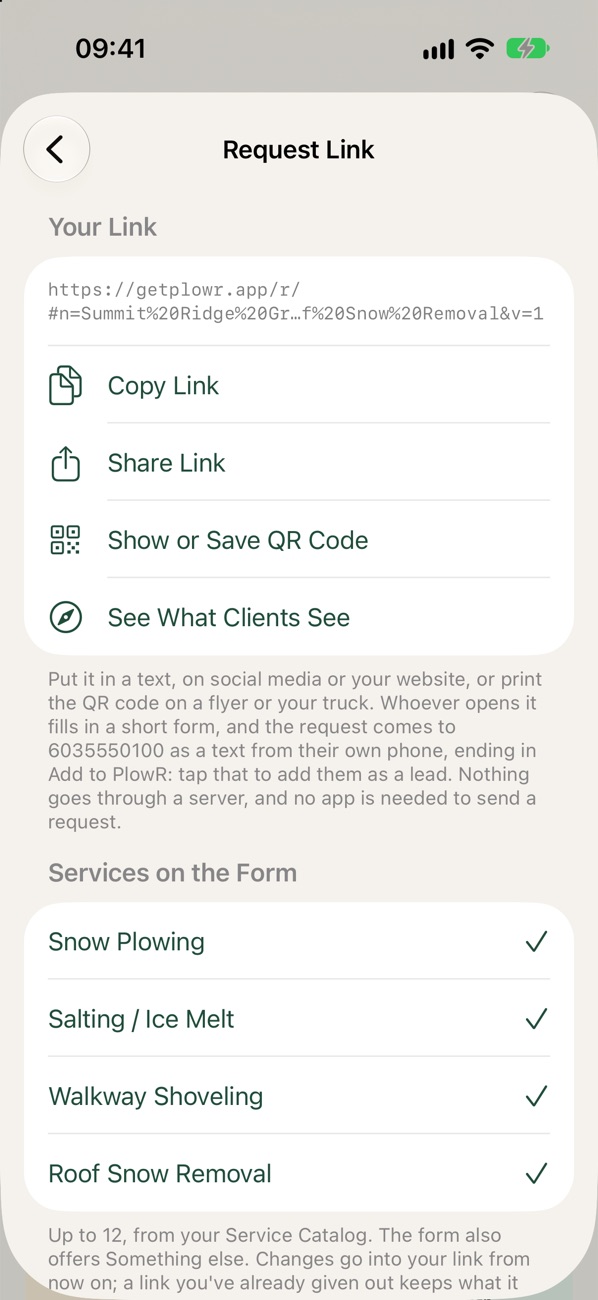
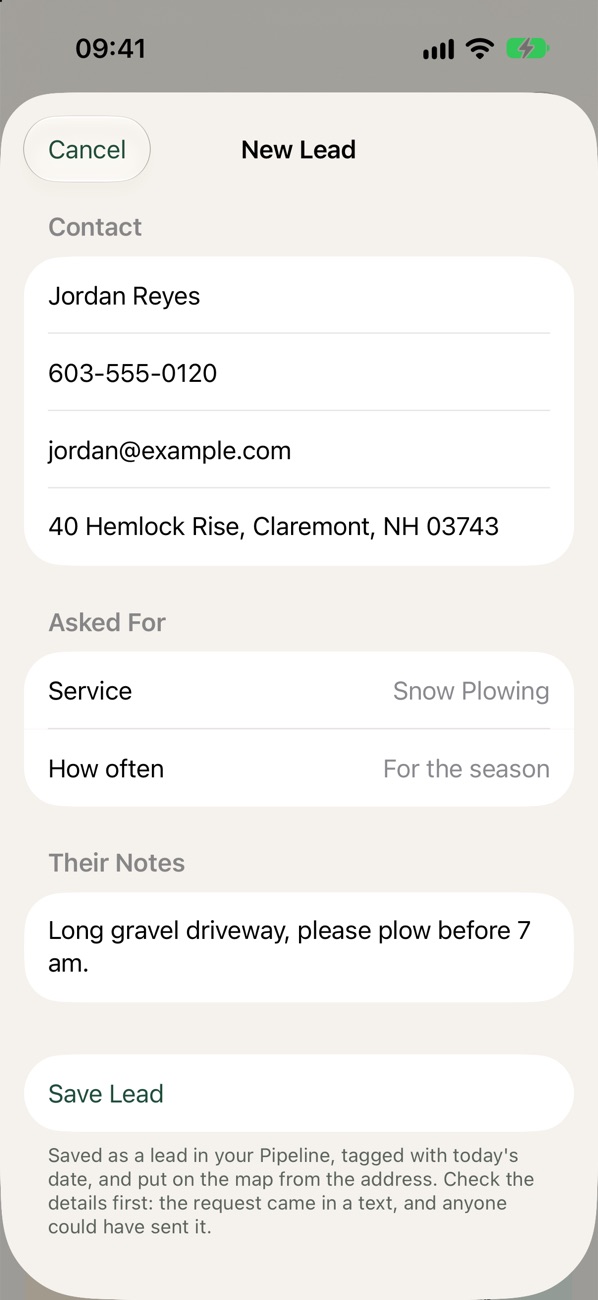
Request Link screen New Lead from a request
  1. Go to Settings → Business → Request Link.
  2. Share it however suits you: Copy Link, Share Link, a QR code for a flyer or truck, or Text to a Client.
  3. When someone sends a request, you get a text. Tap Add to PlowR, check the details, and tap Save Lead.

Building a route with expected services

A route is your list of stops in order, with the services each stop needs.

Create a route

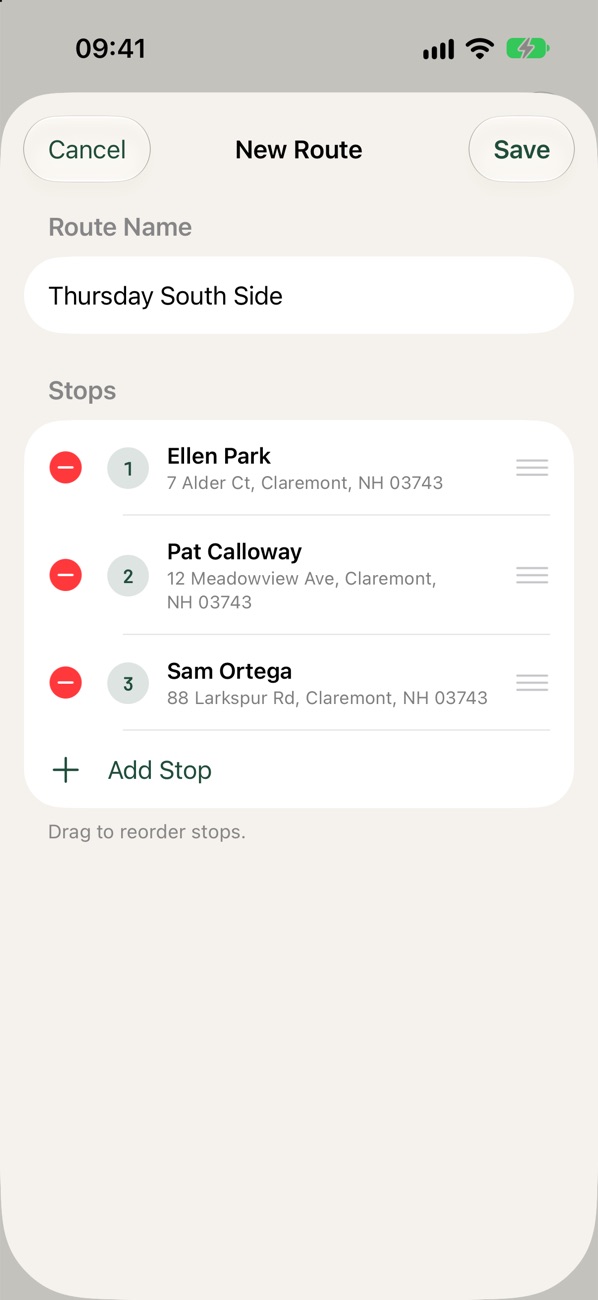
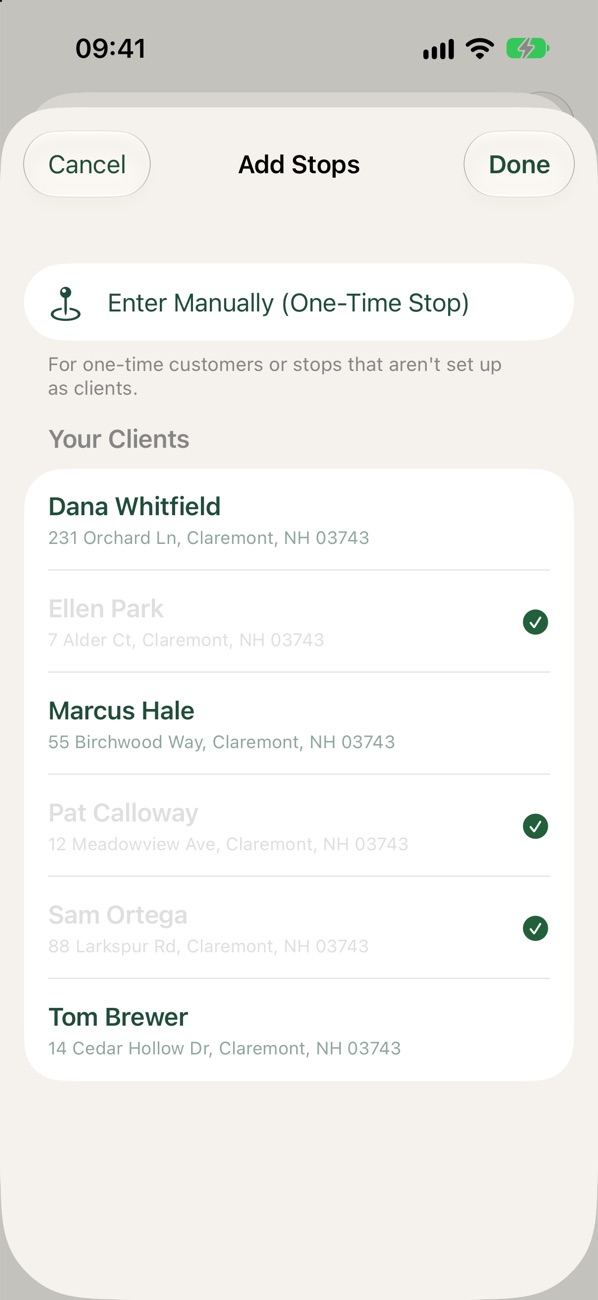
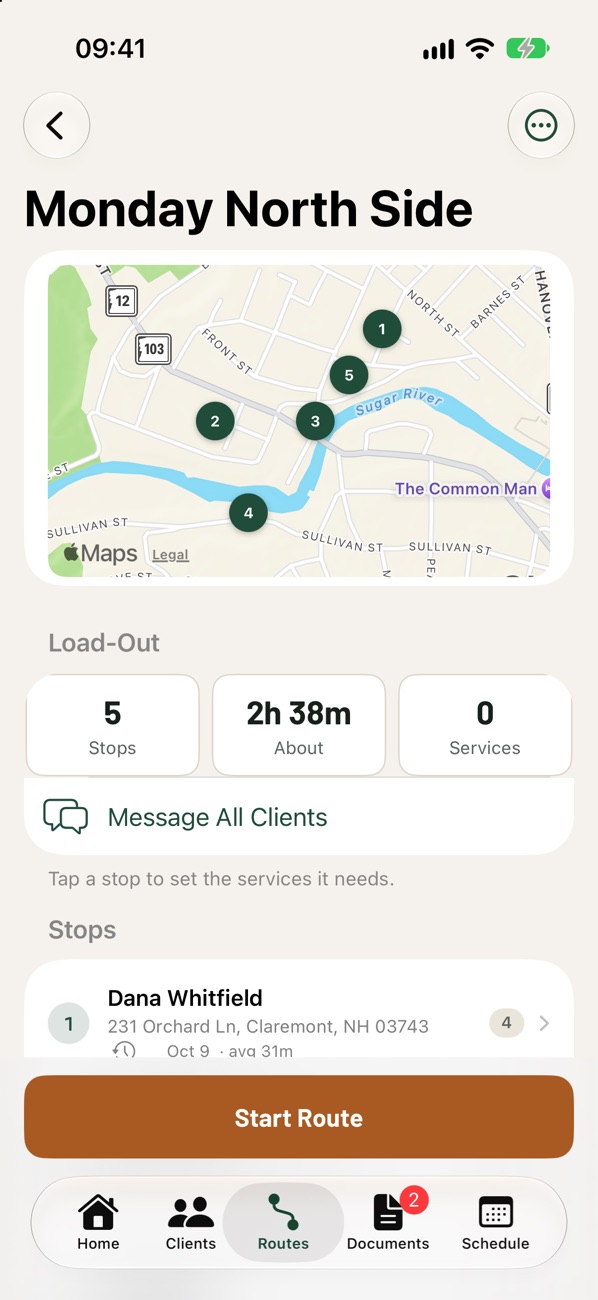
New Route sheet Add Stops client picker route page
  1. Open the Routes tab and tap +.
  2. Give it a Route Name, like "Monday North Side".
  3. Tap Add Stop, choose clients from Your Clients (or Enter Manually for a one-time stop), then tap Done.
  4. Drag stops into the order you want, and tap Save.
  5. Or let PlowR order them: on the route page, tap ⋯ → Optimize Order.

Set the services each stop needs

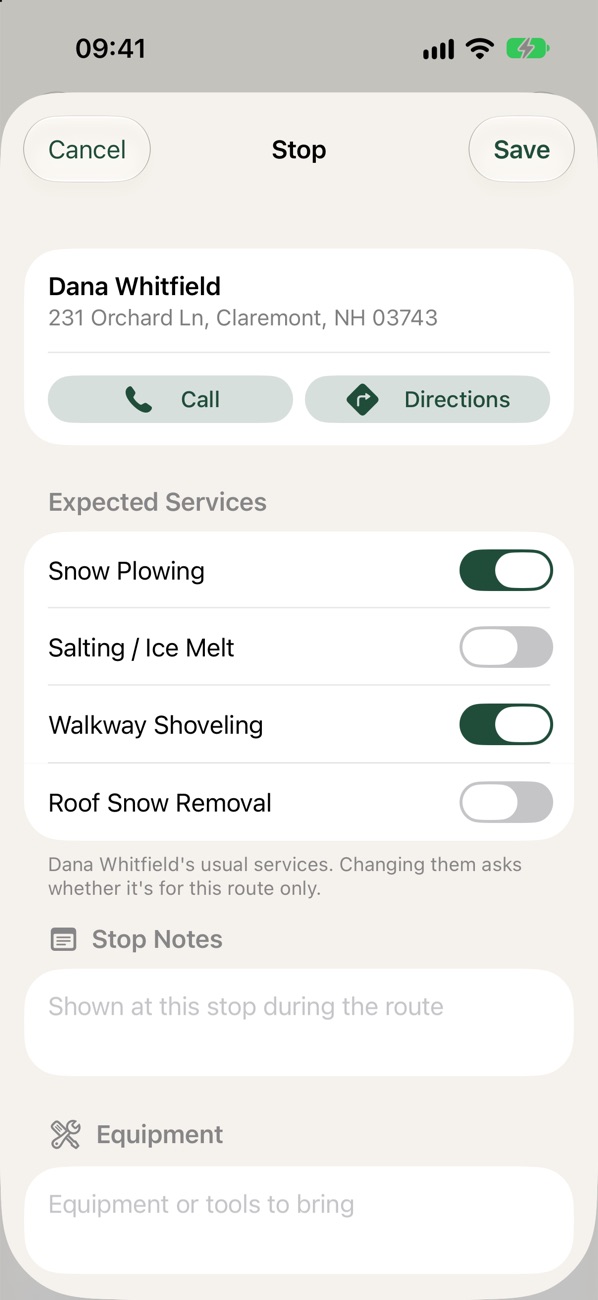
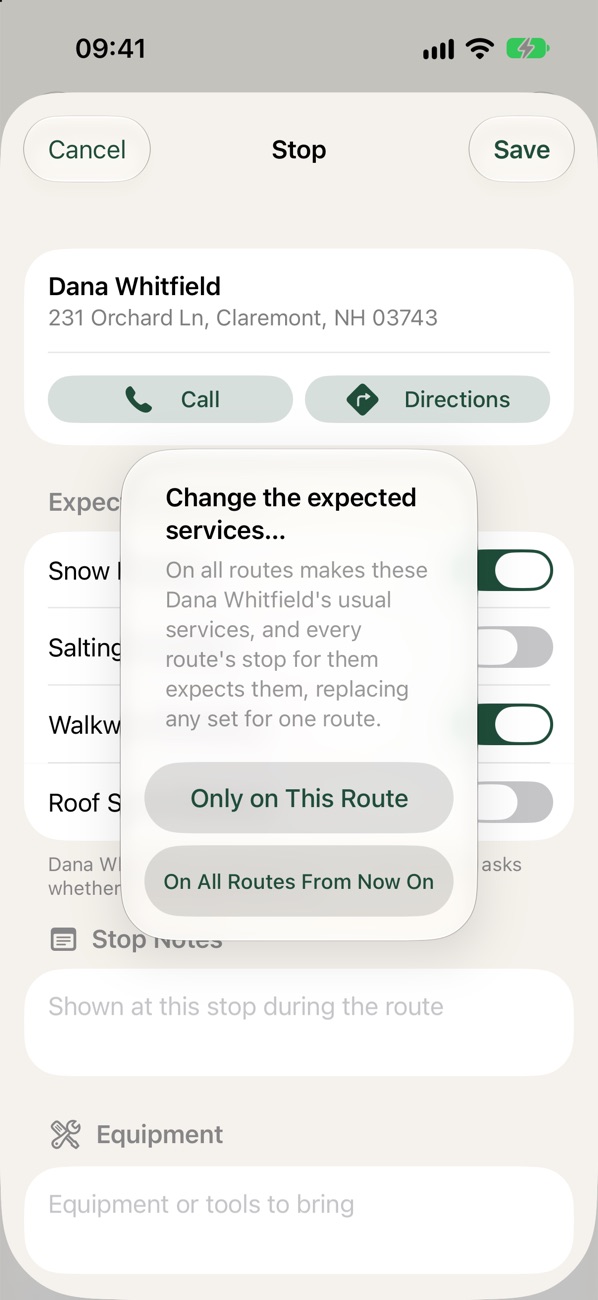
Stop sheet, Expected Services Only on This Route choice
  1. On the route page, tap a stop.
  2. Under Expected Services, switch on what the stop needs. Add stop notes and equipment if useful.
  3. Tap Save, then choose Only on This Route or On All Routes From Now On.
Your list of services and prices lives in Settings → Service Catalog. Skipping a stop just for today? Swipe it and tap Skip Today.

Optional: set up repeating visits

For clients you serve on a regular schedule, like a weekly mow. Routes don't repeat on their own; repeating visits live in Schedule.

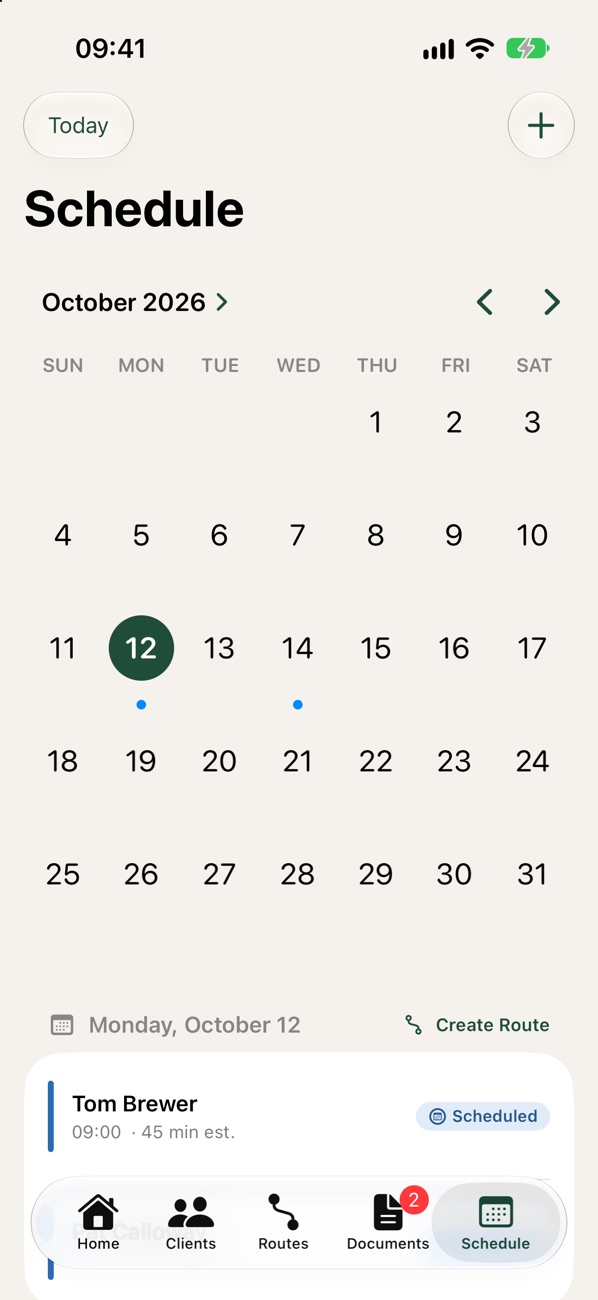
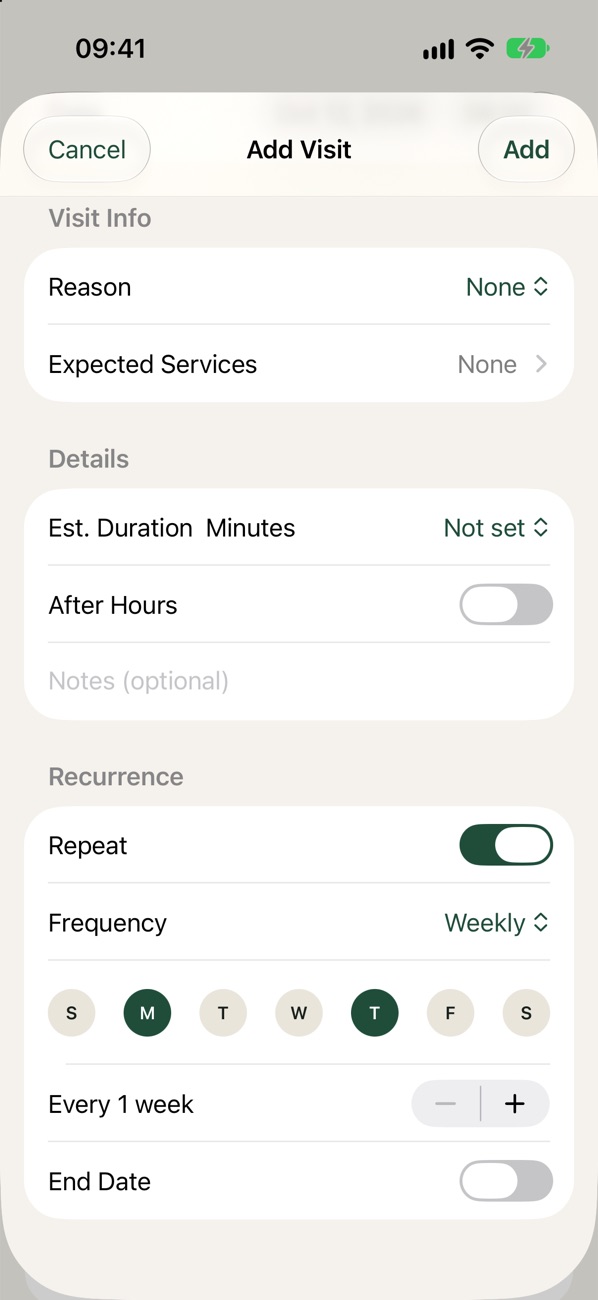
Schedule tab Add Visit, Recurrence
  1. Open the Schedule tab and tap +.
  2. In Add Visit, choose the Client and the Date.
  3. Under Recurrence, turn on Repeat and pick a Frequency: Daily, Weekly, Every 2 Weeks or Monthly. For Weekly, choose the days.
  4. Turn on End Date if the work stops at the end of a season, then tap Add.
Want visits on your iPhone calendar too? Turn on Settings → Calendar → Add Visits to Calendar.

Running a route and texting clients

Work through your stops one by one, record what you did, and keep clients in the loop.

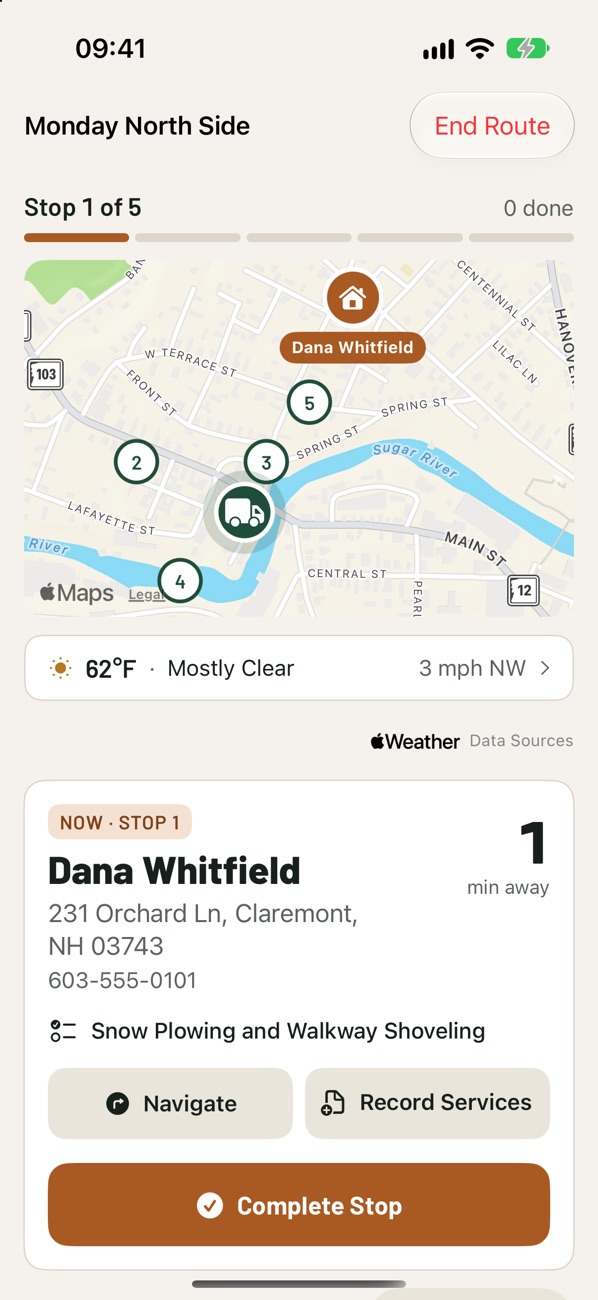
Start and work your route

Start Route on Home route screen, current stop Record Services
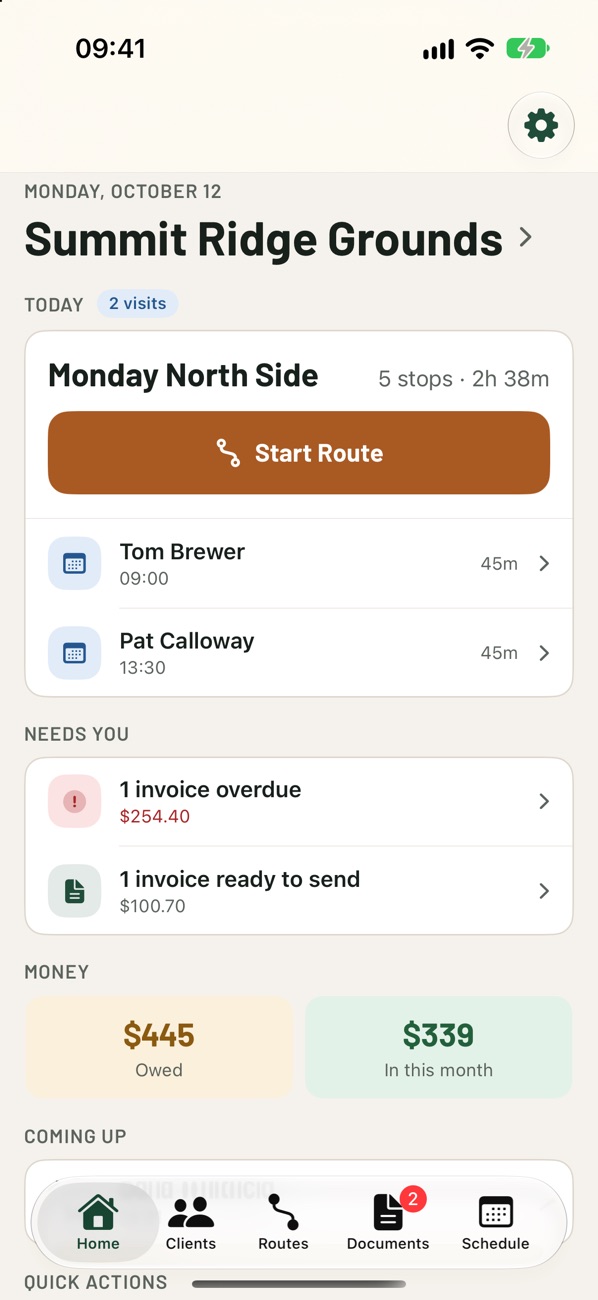
  1. Tap Start Route on the route page or on Home's Today card.
  2. Tap Navigate to get directions in Apple Maps, Google Maps or Waze.
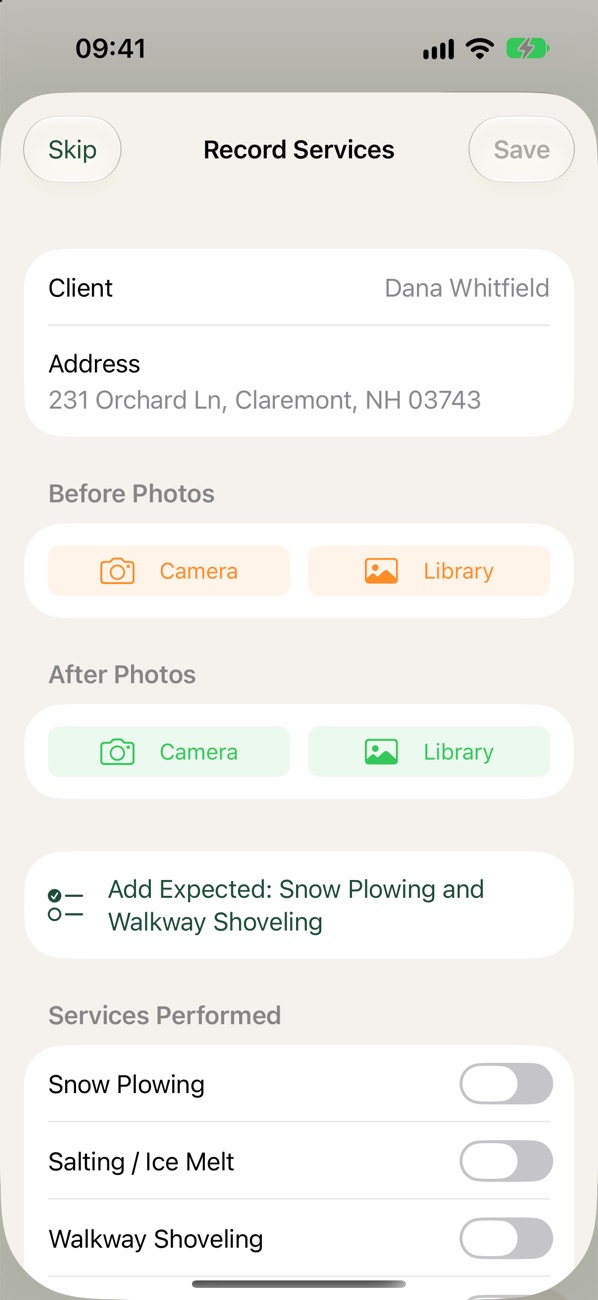
  3. At the stop, tap Record Services to add before and after photos, the services done (Add Expected fills them in), and notes. Then Save.
  4. Tap Complete · Text Next Client to finish the stop and move on. (It says Complete Stop when there's no one to text.)
  5. After the last stop, tap Review & End Route to see the Route Recap, then End Route.
Set Location to Always so PlowR records arrival and departure times even when the app is closed.

Let the next client know you're coming

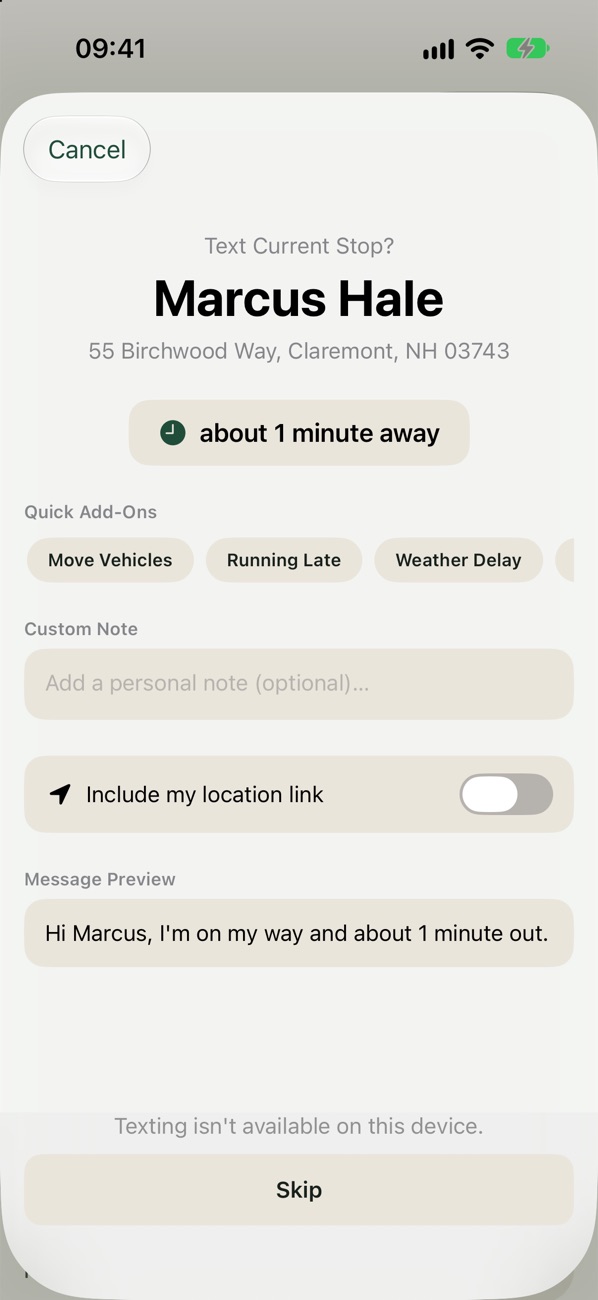
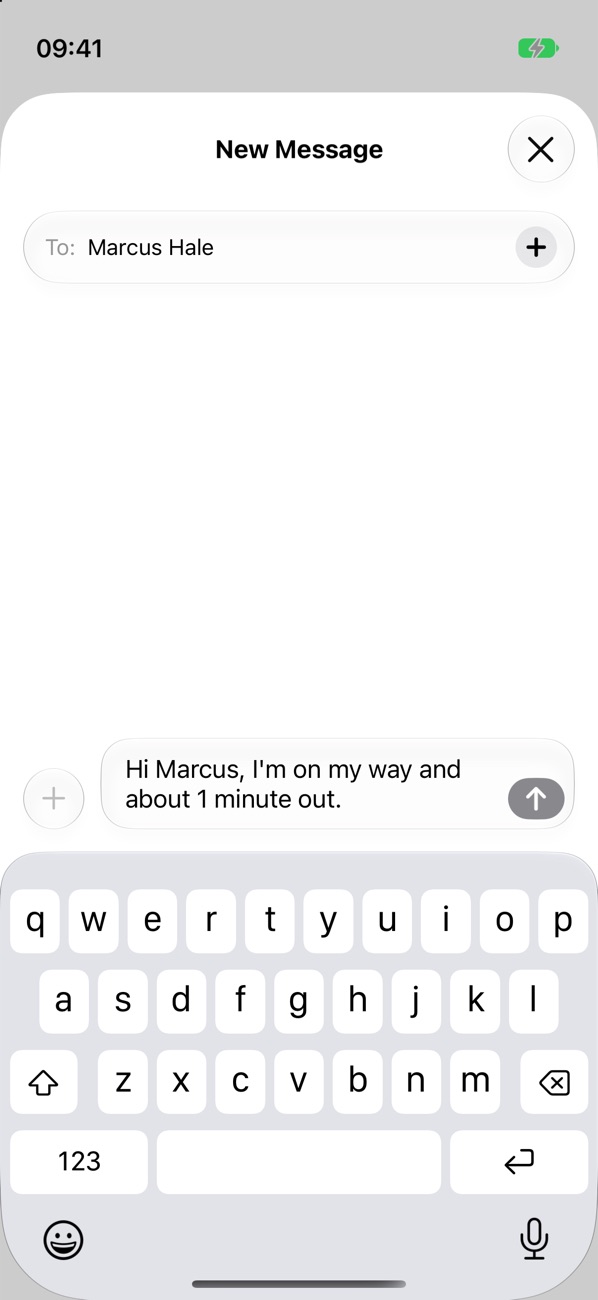
The text prompt for the next client, with quick add-ons, a custom note, the location link switch and a message preview Messages compose
  1. When you complete a stop, PlowR offers Notify Next Client? with a ready message: "I'm on my way and about N minutes out."
  2. Add a quick note if you need one, like Running Late, Weather Delay or Gate / Access, or type your own.
  3. Turn on Include my location link if you want them to see where you are.
  4. Tap Send Message. It goes from your own Messages app. Or tap Skip.
Client doesn't want texts? Turn on Skip arrival message prompt on their page.

Message everyone on the route

  1. Before you leave, open the route and tap ⋯ → Message All Clients. During a route, tap Message All.
  2. Pick a preset (Coming Today, On My Way, Running Late, Weather Delay, Almost Done) or write your own.
  3. Choose Send Individually (recommended) or a group text.

Quick tips

🗣️ Hands-free with Siri"Complete current stop in PlowR" or "Notify next client in PlowR".
🎛️ Control CenterAdd Complete Current Stop to Control Center to finish a stop in one tap.
📱 Today's Route widgetSee your progress and next stop on your Home Screen.
🔒 Lock ScreenYour route's progress shows on the Lock Screen while it runs.
❄️ Storm card PROWhen a storm's forecast reaches a contract's trigger, Home offers to text those clients.
📄 Service Report PROArrival and departure times, timed photos and weather for each visit, as a PDF for a client or insurer.
📅 Your calendarSettings → Calendar → Add Visits to Calendar keeps a PlowR calendar in step.
💾 Export your dataSettings → Business → Export Data makes spreadsheets of everything. Share All sends them together.

FAQ & troubleshooting

Why does PlowR ask for Always location?

So it can record when you arrive at and leave each stop, and offer the next client's text, even with the app closed. With While Using, times are only recorded while PlowR is on screen.

What happens if my Pro subscription ends?

Nothing is deleted. With 10 or fewer active clients you're back on the free tier. With more, PlowR is read only: you can still view, export and record payments, and subscribing again unlocks everything.

I hit the 10-client limit

Clients you mark inactive don't count. Or try PlowR Pro for unlimited clients and routes.

My data isn't on my other device

Check both devices are signed in to the same Apple ID with iCloud on for PlowR. Settings → Data & Backup shows whether iCloud is working.

Can a client use PlowR too?

Yes. Choosing "I'm looking for services" lets people find businesses near them and request work.

More answers on the Support page, or write to support@getplowr.app.

What's new

PlowR 1.7: first release